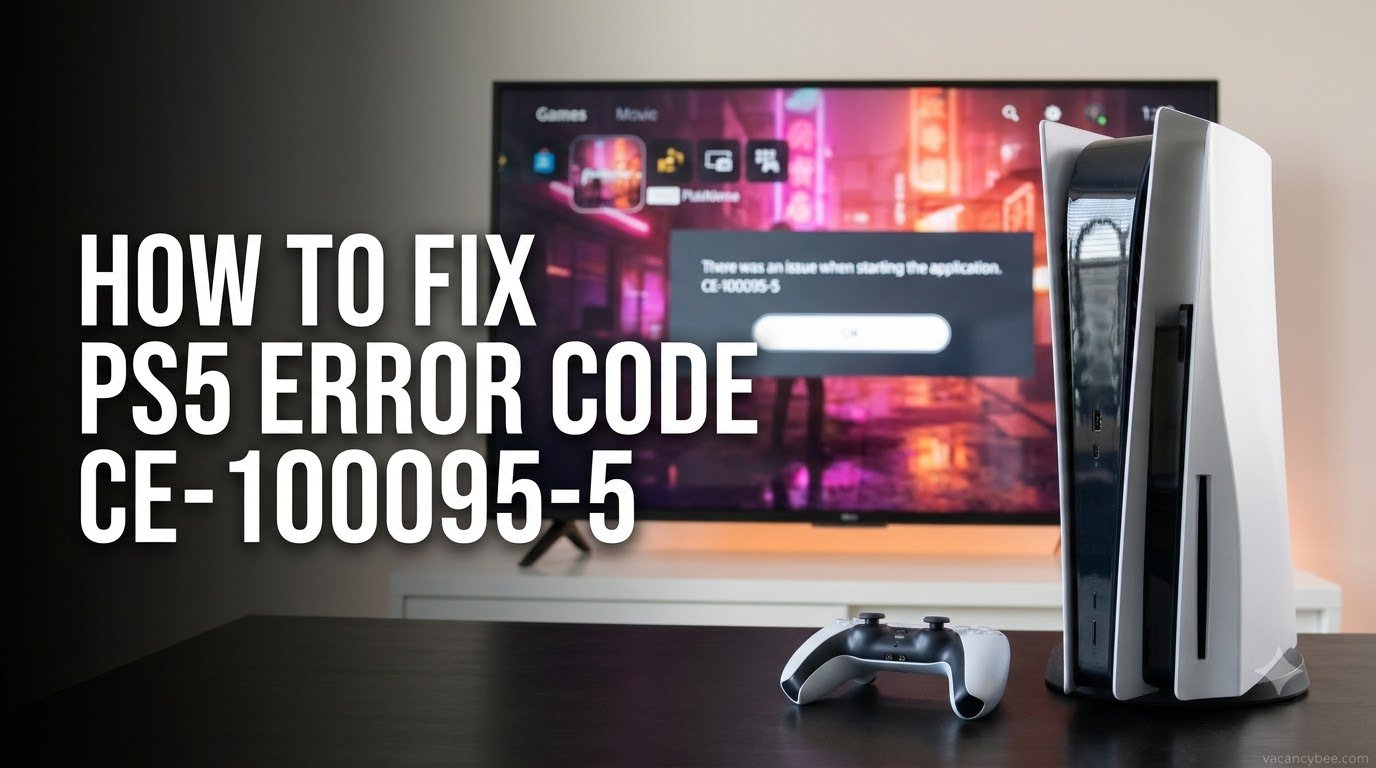
PS5 error code CE-100095-5 means “There was an issue when starting the application.” The message appears when a game or app refuses to launch, and searches for it have spiked since GTA 6 arrived on PS5 in December 2026. I spent launch week testing every workaround on my own console, and in almost every case the culprit is an interrupted download, a corrupted install, or a cluttered database — not broken hardware. The table below sums up what you’re dealing with, then I walk you through seven fixes ordered from 60-second quick wins to the official delete-and-reinstall method. Work down the list and stop the moment your game boots; most players never need the final fix.
| Quick Overview | Details |
|---|---|
| Error message | “There was an issue when starting the application” (some games show “Can’t open the game or app”) |
| Main triggers | Interrupted downloads or updates, corrupted installs, cache/database errors, external-drive problems |
| Fastest fixes | Power cycle, resume stalled updates |
| Official fix | Delete and reinstall the game, keep console powered on |
| Time needed | 5 minutes to a few hours |
| Works on | All PS5 models, digital and disc editions |
What Causes PS5 Error CE-100095-5?
I keep seeing the same five triggers behind this code, on my console and in player reports:
- Stalled downloads or updates — a patch that freezes mid-install leaves launch files incomplete.
- Corrupted game data — one bad install block can break an otherwise healthy title.
- Database or cache clutter — months of installs, patches and Rest Mode suspends corrupt system data.
- External-drive storage — PS5 games must run from the internal SSD, so a disconnected or failing USB drive breaks launches.
- Server-side license checks — heavy launch traffic can stall verification and abort the app before the menu.
1. Let Downloads and Updates Finish
Press the PS button and open Control Center → Downloads/Uploads (or Notifications → Downloads). If anything is paused, stalled or stuck at a percentage, resume it and let it hit 100% before launching the game. This is the quiet cause behind a big share of launch-week GTA 6 cases: the day-one update freezes near the end, and simply resuming it clears the code. It takes two minutes to check, so always start here.
2. Power Cycle Your PS5 (and Router)
A real shutdown clears memory junk that Rest Mode never touches. Press the PS button, go to Power → Turn Off PS5, wait for the light to die, then unplug the power cable for at least a minute before booting again. If your downloads have also been slow or dropping, restart the router while the console is unplugged — a flaky connection produces the same half-installed files that trigger this error. Retest the game before moving on.
3. Check PSN Server Status
Open status.playstation.com and look at Gaming and Social Services. If PSN is down or degraded in your region, the console can fail license verification and throw CE-100095-5 even though your files are fine — no local fix helps until Sony restores service. During GTA 6 launch week, heavy traffic caused exactly this kind of temporary failure for many players, so if everything checks out locally, waiting an hour or two is a legitimate fix.
4. Clear Cache and Rebuild Database in Safe Mode
This is my go-to fix when a game won’t start but everything else works. Turn the PS5 off completely, then hold the power button until you hear the second beep (about seven seconds) to enter Safe Mode. Connect your controller with a USB cable and press the PS button, then:
- Select Clear Cache and Rebuild Database.
- Run Clear System Software Cache first.
- Choose Rebuild Database and let it scan and repair the storage drive.
The rebuild doesn’t delete your games or saves — it just re-indexes the SSD and repairs corrupt system data. On a big library it can take anywhere from minutes to a few hours, so let it run.
5. Update PS5 System Software
An outdated firmware build is a classic reason brand-new titles refuse to launch. Go to Settings → System → System Software → System Software Update and Settings → Update System Software → Update Using Internet, install anything offered, and keep the console powered on until it finishes. If Settings itself misbehaves, boot into Safe Mode (fix 4) and choose Update System Software there instead. Retry the game immediately after the console restarts.
6. Move the Game to the Internal SSD
PS5 titles only launch from the internal ultra-fast SSD — anything parked on extended USB storage is a common source of this code, especially if the drive sleeps or disconnects mid-read. Open Settings → Storage, check whether the game sits under Extended Storage, then select it and choose Move to Console Storage. If your external drive has been acting unreliable at all, treat that drive as the suspect and keep PS5 games off it permanently.
7. Delete and Reinstall the Game (Official Fix)
This is PlayStation’s official recommendation for CE-100095-5, and it’s what finally worked for the stubborn GTA 6 launch-week cases where Safe Mode wasn’t enough.
- Back up your saves first — check Settings → Saved Data and sync to PS Plus cloud storage or copy to USB. Saves usually survive, but don’t gamble.
- Highlight the game on the home screen, press Options, and select Delete.
- Reinstall it from your Library and keep the console powered on for the entire installation — pulling power mid-install recreates the exact corruption this error reports.
- Use a wired connection; a title as large as GTA 6 punishes unstable Wi-Fi.
Once you’re back in Vice City, my guide on how to sell cars and bikes in GTA 6 gets your cash flowing again.
Common Mistakes to Avoid
- Deleting the game before trying the quick fixes. A reinstall costs hours of downloading; the cache clear costs minutes.
- Reinstalling without a save backup. Cloud saves need PS Plus; without it, copy saves to USB first.
- Unplugging the console mid-install to “speed things up” — that’s how the error was born in the first place.
- Factory resetting too early. It wipes the entire console and almost never fixes what a database rebuild can’t. Treat it as the last resort before support.
When to Contact PlayStation Support?
If the code returns on every game, even after a clean reinstall and a database rebuild, the fault is likely in the console’s storage hardware rather than any single title. Stop wasting evenings on reinstalls — run the fixes above once more on a small, different game to confirm the pattern, then contact PlayStation Support for a repair or storage diagnosis.
FAQs
What does error CE-100095-5 mean on PS5?
It means “There was an issue when starting the application.” Your PS5 couldn’t launch the game or app, usually because its install is incomplete or corrupted, its database needs a rebuild, or the game is trying to run from unsuitable storage.
Why does GTA 6 keep showing CE-100095-5?
Launch-week reports cluster around two causes: the day-one update freezing near the end, and license verification stalling under massive server traffic. Resuming the update, power cycling, or reinstalling resolved it for nearly every player who hit it.
Will rebuilding the database delete my games?
No. Rebuild Database re-indexes the SSD and repairs system data without touching your games, apps or saves. The cache clear in the same Safe Mode menu is equally safe — it only wipes temporary system files.
Does deleting a PS5 game delete my saves?
No — deleting a game removes only the application. Saved data stays on the console unless you delete it separately, but I still recommend syncing saves to the PS Plus cloud before any reinstall, just in case.
Related Guides

Related Articles